
Mistfall Hunter Storage and Inventory: Space, Lost Loot
Your Mistfall Hunter storage is shared by every character. Move one item without Transfer All, unlock more warehouse space, and find gear that looks lost.
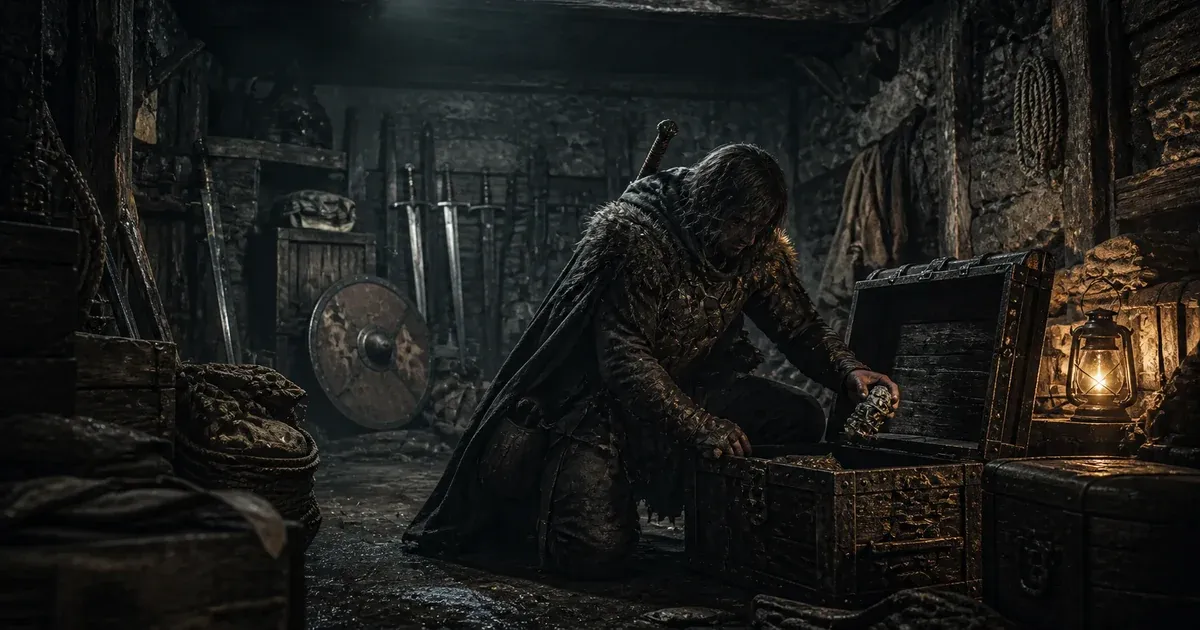
To use the warehouse in Mistfall Hunter, open the storage tent at Windrest and move extracted items out of your run inventory. On the default PC controls shown in current footage, F opens the physical chest, C is used for Transfer All, R organizes storage, and Tab can open warehouse access while you are at camp.
How do I put one item into the warehouse?
Open the Warehouse, select the item you want to bank, and use the item-level move or store action displayed by your current control scheme. If you only want to move one item, do not use Transfer All: the collected PC footage shows C moving the full eligible inventory rather than acting as a one-item shortcut.
| What you want to do | Default PC control shown in sources | Result |
|---|---|---|
| Open the physical warehouse tent | F | Opens the storage chest at Windrest |
| Open warehouse access from camp | Tab | Opens the camp inventory interface without walking to the tent |
| Move one item | Use the item’s displayed move/store action | Banks only the selected item |
| Move all eligible items | C | Runs Transfer All |
| Organize stored items | R | Groups the warehouse by item type and rarity |
These are keyboard controls demonstrated in the collected footage. Controller prompts and custom keybinds can differ, so use the action label shown in your own UI when it does not match this table.
The game’s official systems guide confirms the underlying behavior: loot brought out after a successful extraction can be moved into the warehouse for safekeeping, and eligible items can be listed on the auction house from either your inventory or storage.
Is warehouse storage shared between characters?
Yes. Your warehouse is shared, and the official guide states that its items and materials remain unchanged after a class change. That makes it useful for more than protecting your current loadout: you can bank equipment for a class you intend to play later instead of rebuilding that character from nothing.
A practical rule is to keep one usable set for your current class, replacement gear you can afford to risk, and off-class equipment you realistically expect to use. List surplus class gear on the auction house rather than allowing every possible future build to consume storage. The classes guide can help you decide which roles you actually want to prepare for.
How does Organize Warehouse work?
On the default PC layout demonstrated by player guides, R automatically groups weapons, armor, materials, and other stored items by type and rarity. Community reports clarify that the chest icons are consecutive pages of one large warehouse, not independent chests with separate sorting rules, so organized items fill the earlier pages first.
That distinction explains two behaviors that otherwise look like bugs:
- Organize does not preserve a materials-only page. It sorts the entire warehouse according to the game’s order.
- Transfer All fills the first available page first. Overflow moves into later pages; it does not target whichever chest icon is currently selected.
If you prefer manual sections for gear and materials, automatic organization will work against that layout. A more durable approach is to let the game sort by type, then favorite materials needed for your next camp upgrade or Scavenger Squad job. Favorited items are easier to recognize both during a run and when deciding what to sell.
What should I keep, sell, or list on the auction house?
Keep items that support a near-term loadout or upgrade; convert the rest into spendable value. The auction house changes the usual hoarding calculation because missing materials can be purchased when needed. When space is tight, a rare, high-value item is usually more useful than several cheap materials you are not currently spending.
| Item type | Recommended warehouse decision | Evidence strength |
|---|---|---|
| Current loadout and replacement gear | Keep at least one set you can deploy without rebuilding | Consistent with official storage behavior and multiple guides |
| Gear for a class you plan to play | Keep a usable set in the shared warehouse | Demonstrated by player guides and consistent with class-change persistence |
| Surplus off-class gear | List it on the auction house when it has a useful market value | Community recommendation; prices change |
| Materials for your next camp or squad action | Keep and favorite them | One detailed loot guide demonstrates this workflow |
| Rare or high-value materials | Prioritize them when run inventory is full | IGN’s loot guide recommends value over cheap, replaceable materials |
| Cheap materials with no near-term use | Sell first when storage is tight | Useful as a rule of thumb, not a fixed price threshold |
| Excess items with little market demand | Sell to the shop or list on the auction house | Confirmed in a developer reply on Steam |
Do not copy a static price list and treat it as permanent. Check the current auction value before listing an item, and compare that return with the cost of buying the material back when you actually need it. For broader progression priorities, use the beginner guide rather than turning the warehouse into a collection of every item you have seen.
How do I get more warehouse space?
Upgrade the Warehouse facility at Windrest. The official systems guide confirms that warehouse upgrades unlock additional storage slots. Open the facility’s current upgrade panel to see the materials required for your next level, then decide whether to keep those drops or use the auction house to fill the missing requirements.
Upgrade before the warehouse is completely full. Extra working space is useful not only for normal loot management but also for recovering items that appear invisible after extraction. Selling excess items to the shop or auction house is the developer-confirmed way to clear space; you do not need to carry junk into another expedition just to discard it.
What if items look missing after extraction?
Treat this as community troubleshooting, not a confirmed diagnosis. One recorded PC case shows items still occupying inventory or equipment slots even though they are not visible. The workaround below recovered that creator’s loot, but the collected sources contain no official explanation and do not establish that every missing-item report has the same cause.
- Create free space first. Leave room in both the warehouse and ordinary inventory so recovered items have somewhere to move.
- Probe apparently empty inventory slots. Move one visible item from the warehouse through slots that look empty. In the recorded case, this uncovered ordinary items that were present but not rendering.
- Use placeholders for invisible equipment. Clear the visible inventory, equip cheap replacement items in the affected gear slots, then run Transfer All. The creator reports that this displaced the hidden gear and moved it back into the warehouse.
- Verify every slot before selling or discarding anything. The same method was demonstrated for the supply bag, but it is not guaranteed across every version or platform.
You can watch the recorded workaround before trying the equipment step. If the items still do not appear, stop rearranging the affected slots and use official support rather than assuming the loot was deleted or repeatedly buying replacements.
What is the safest warehouse routine between runs?
Bank the haul, prepare the next affordable loadout, favorite the materials tied to your immediate goal, and clear surplus before queueing again. This keeps enough open space for the next extraction without forcing you to make rushed keep-or-sell decisions while the warehouse is already full.
The short version is:
- Transfer extracted loot into storage.
- Keep the next loadout and realistic off-class sets.
- Favorite current upgrade and Scavenger Squad materials.
- List valuable surplus; sell low-value excess to the shop.
- Organize with R only if you are comfortable treating the chest icons as pages of one warehouse.
- Leave spare slots before the next run.
TL;DR
At Windrest, open the warehouse tent with F on default PC controls; use the item-level move action for one item and C for Transfer All. The warehouse is shared between characters, R sorts all of its pages together, and upgrades add storage slots. Keep near-term gear and favorited materials, sell excess, and treat invisible-item recovery as a community workaround rather than a guaranteed fix.