
Mistfall Hunter Ping, Desync, and FOV Settings Guide
Diagnose Mistfall Hunter ping, stutter, and desync, apply the developer-reported performance settings, and improve visibility without a fake FOV command.
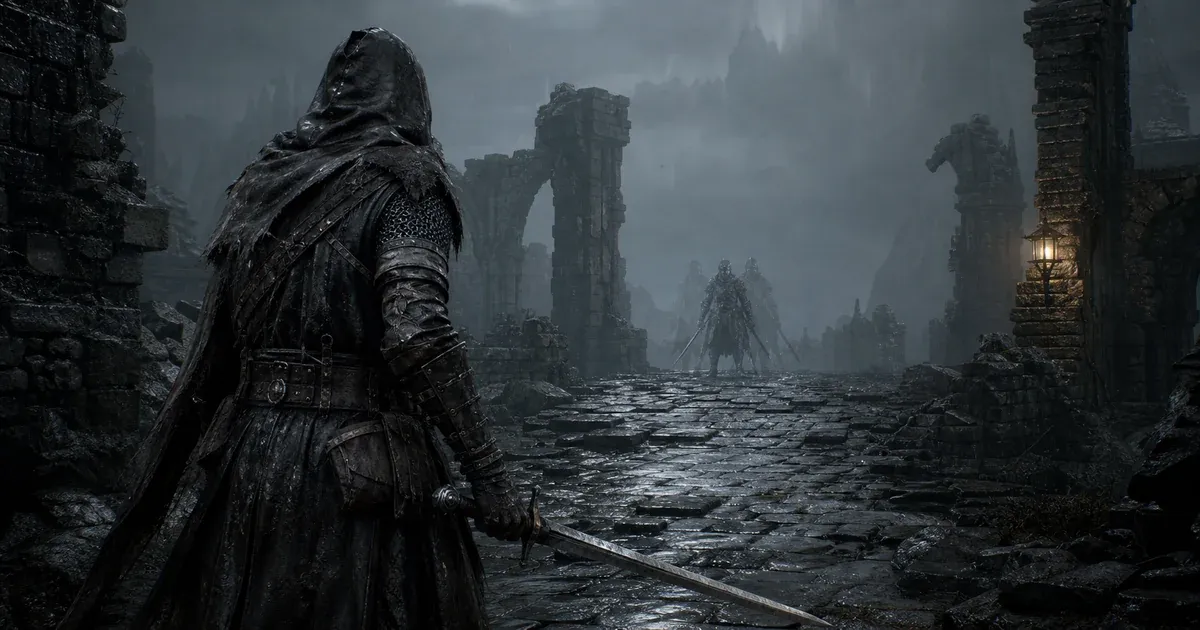
Mistfall Hunter currently has no native FOV slider or camera-distance control, and typing /fov 120 in global chat does nothing. For connection problems, first separate high ping from frame-rate stutter and server desync: they can look similar in combat, but they need different tests.
Can you change FOV in Mistfall Hunter?
No supported in-game control currently changes field of view. The launch-period settings menu has no FOV or camera-distance slider, and a fresh source check on August 23, 2026 found no indexed Bellring Games announcement adding one.
The /fov 120, /fov120, and /fov.120 messages seen in global chat are not working commands. The collected Steam discussion traces them to players copying chat spam and explicitly describes the result as a troll. Do not paste them repeatedly or edit Unreal Engine config files expecting the same command to work outside chat.
How to make the fixed camera easier to use
You cannot widen the view, but you can reduce the visual effects that make the fixed camera feel less clear:
- Turn off Motion Blur so movement does not smear nearby enemies or scenery.
- Turn off Smooth Camera to remove camera smoothing, especially for mouse aiming.
- Adjust camera sensitivity until you can check your sides without overcorrecting.
- Raise View Distance if the system can maintain stable performance, so distant objects load more consistently.
- Lower Shadow Quality if dark detail or frame rate is making targets harder to read.
- Tune brightness carefully for dark interiors without washing out the image.
- Enable Auto-Close Inventory When Taking Damage so an ambush closes the loot interface.
Change one setting at a time and test it in the training area. A wider monitor resolution may change how a third-person view is framed, but it is not an in-game FOV control and should not be treated as a universal workaround.
Ping, stutter, or desync?
Use the symptom rather than the word “lag” to decide what to test.
| What you see | Most likely category | First useful test |
|---|---|---|
| The displayed latency jumps from a normal value into the hundreds | Network ping or packet loss | Pause traffic, use Ethernet, restart the router, test another connection |
| Camera motion or combat freezes while latency stays stable | Rendering or frame-time stutter | Lower GPU load and cap frame rate |
| Other players blink or attacks correct themselves despite a modest ping number | Server or simulation desync | Compare multiple matches and report the time/region to support |
| Login fails before the menu | Connection/session error | Use the Code 1 troubleshooting guide |
A low ping number does not prove the match is free of server desync. One current Steam report describes players blinking during team fights while the client showed about 40 ms. Conversely, a frame-time hitch can feel like a connection spike even when the network is stable.
Settings the developer recommends for “lagging”
Mistfall Hunter developers have replied to several Steam lag reports with the same PC checklist:
- turn off Ray Tracing;
- switch from DLSS to FSR;
- turn off NVIDIA Smooth Motion;
- lower image quality;
- cap the in-game frame rate at 60 or 120.
These steps reduce rendering load and can improve stutter or unstable frame times. They do not directly lower the distance to a server or repair packet loss, a distinction players also raised in the same discussions. Use the checklist when “lag” includes visual hitching; use network isolation when the measured ping itself spikes.
Start with Ray Tracing and Smooth Motion off, then choose a frame-rate cap the PC can hold consistently. Switch upscalers or lower quality only if the frame-time problem remains. If image quality becomes worse without improving the symptom, restore the previous value.
Should you disable client-side hit prediction?
The gameplay settings include client-side damage and hit-prediction options. One detailed tips source recommends turning them off because the client can show a predicted hit before the server confirms it; when the prediction is wrong, the correction can look like misleading damage feedback, desync, or rubber-banding.
Disabling prediction does not reduce ping. It changes when feedback appears, which may make combat feel less immediate but more closely tied to server confirmation. Test it if hit markers or damage numbers are the problem, then keep whichever behavior is easier for you to read.
How to test real ping spikes
If the latency number rises sharply or packet loss appears, keep the test focused on the connection:
- Stop Steam downloads, cloud backups, streams, and large uploads.
- Use wired Ethernet where possible.
- Restart the router and PC.
- Play another match at a different time to rule out one overloaded instance.
- Test only the menu or a low-risk match on a phone hotspot or second connection.
- Note the displayed ping, approximate time, selected region, party members’ regions, and whether the whole squad saw the issue.
If only the home connection fails, investigate Wi-Fi, router, DNS, or ISP routing. If multiple players in the same match see teleporting while their ping remains normal, local graphics or router changes may not solve it.
Do not infer a server’s physical location from one player’s latency. The reviewed material includes speculation about North American coverage but no official server-location table.
When to contact support
The developer responses direct unresolved cases to the official Mistfall Hunter Discord for a ticket. Include:
- a screenshot of the displayed latency if available;
- the time, region, and match type;
- whether the symptom was ping, packet loss, frame stutter, or player teleporting;
- whether teammates saw the same behavior;
- whether Ethernet or another connection changed it;
- whether the developer-recommended graphics checklist changed it;
- CPU, GPU, graphics-driver version, and frame-rate cap for stutter cases.
That distinction gives support something testable. “High ping with packet loss” and “40 ms while everyone teleports” are different reports even when both feel like lag.
Settings quick answers
Does /fov 120 work?
No. It is chat spam, not a supported FOV command.
Is there an FOV slider?
No native FOV or camera-distance control is documented in the current reviewed build.
Can graphics settings lower ping?
Not directly. They can reduce frame-time stutter that feels like lag, but network latency and packet loss need connection tests.
Why do players teleport when ping looks normal?
The symptom can be server or simulation desync rather than raw round-trip latency. Compare multiple matches and report a reproducible case.
What settings should I change first?
For visibility, disable Motion Blur and Smooth Camera. For rendering stutter, turn off Ray Tracing and NVIDIA Smooth Motion, then use a stable frame-rate cap. For measured ping spikes, test the network instead.